




Check out this article to learn how to configure network settings using a PowerShell script—a much faster way to set up both client machines and servers. This approach simplifies deploying multiple systems autonomously. This is a basic version that can be expanded for even more automated network configurations.
How to configure network settings using PowerShell?
Always test commands individually on a test server or client first to understand exactly what they do—even when using proven scripts from trusted sources. This script configures two main elements:
- Static IP configuration including:
- IP address
- Network prefix
- Default gateway
- DNS server
- Computer name change
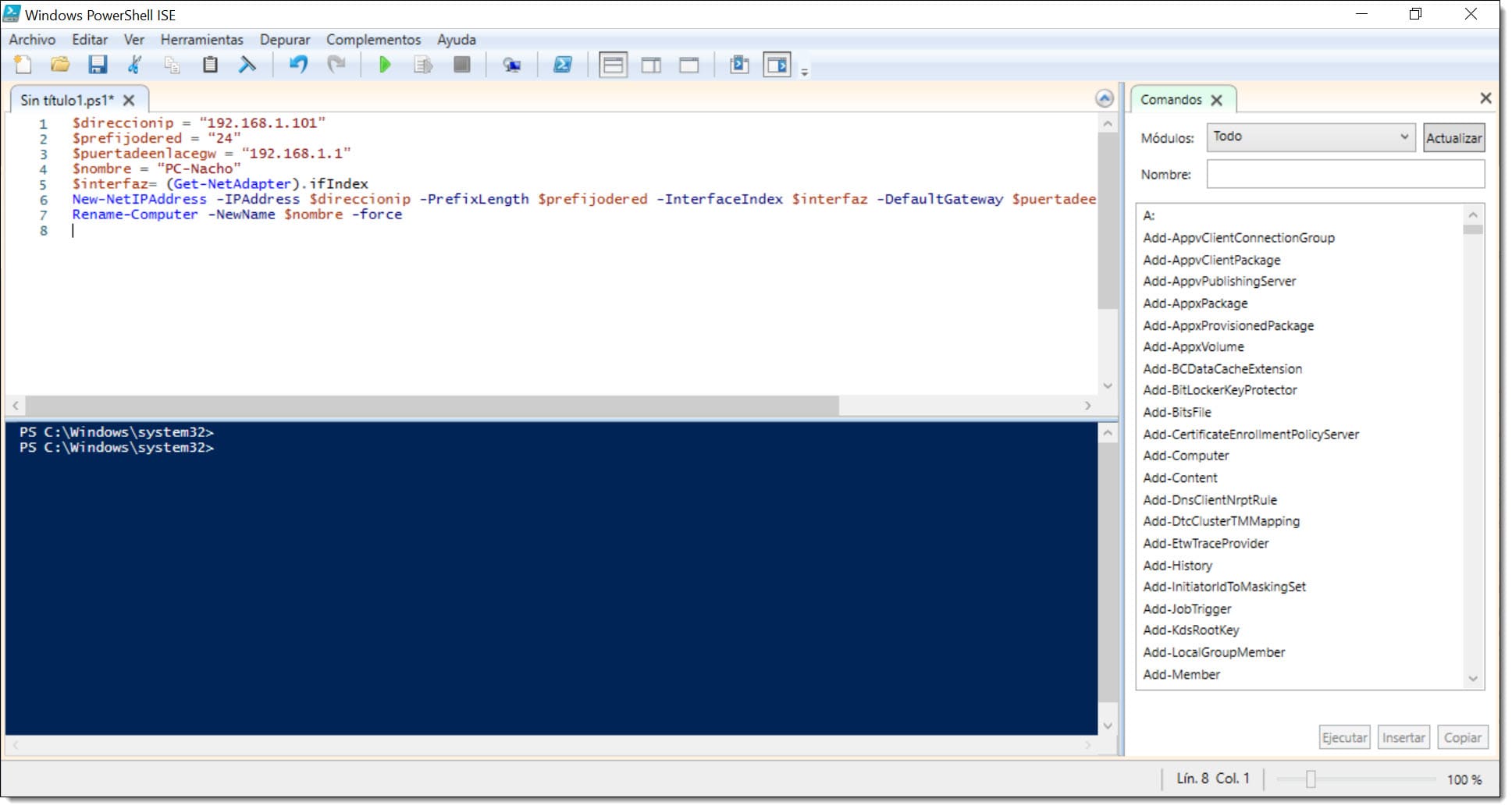
Before running the script, determine your network values and replace these example values: <IP Address> = 192.168.1.101 <Network Prefix> = 24 <Default Gateway> = 192.168.1.1 The basic IP command becomes: New-NetIPAddress -IPAddress 192.168.1.101 -PrefixLength 24 -DefaultGateway 192.168.1.1 For reusability, convert these into variables: $direccionip = "192.168.1.101" $prefijodered = "24" $puertadeenlacegw = "192.168.1.1" $interfaz = (Get-NetAdapter).ifIndex New-NetIPAddress -IPAddress $direccionip -PrefixLength $prefijodered -InterfaceIndex $interfaz -DefaultGateway $puertadeenlacegw Create a .ps1 file named configuracionred.ps1 with your script. To also change the computer name (recommended for organized infrastructure), add: $nombre = "PC-Nacho" Rename-Computer -NewName $nombre -Force The complete unified script looks like this: $direccionip = "192.168.1.101" $prefijodered = "24" $puertadeenlacegw = "192.168.1.1" $nombre = "PC-Nacho" $interfaz = (Get-NetAdapter).ifIndex New-NetIPAddress -IPAddress $direccionip -PrefixLength $prefijodered -InterfaceIndex $interfaz -DefaultGateway $puertadeenlacegw Rename-Computer -NewName $nombre -Force
Conclusions and Next Steps
This article demonstrates how to configure network settings using a PowerShell script, automating common network tasks with simple PowerShell commands. After running the script, you'll have configured:
- IP address
- Network prefix
- Default gateway
- DNS server
- Computer name
The entire process takes just a few steps. Learn more PowerShell automation techniques on our blog. If you run into any issues, don't hesitate to contact us—we're here to help troubleshoot. Thank you for your trust!